VM (OVA) Installation
Watchdog is available as a pre-built virtual machine image for environments that require a hardened, ready-to-deploy setup or have no internet access during installation. The OVA is built on Ubuntu Server 24.04.4 LTS, hardened to CIS Level 1 standards, and ships with Docker, all Watchdog images, and the release tree pre-loaded at /opt/watchdog-release/. A first-boot TUI launches automatically on first login and drives the installer end-to-end — there is no separate installer command to run.
VM Image Details
| Property | Value |
|---|---|
| Base OS | Ubuntu Server 24.04.4 LTS |
| Hardening Standard | CIS Level 1 (235 rules applied) |
| Lynis Hardening Score | 80+ |
| Docker | Pre-installed |
| Watchdog Images | Pre-loaded |
| Release Tree | Pre-loaded at /opt/watchdog-release/ |
| First-boot TUI | Auto-launches on first SSH/console login |
| SSH Access | Password and key-based authentication (both enabled) |
Hypervisor Requirements
The OVA is built with hardware version vmx-13 and is compatible with the following VMware platforms:
| Hypervisor | Minimum Supported Version |
|---|---|
| VMware ESXi | 6.5 or later |
| VMware Workstation | 14 or later |
| VMware Fusion | 10 or later |
Note: The OVA uses VMware specific OVF schema extensions. Import into VirtualBox or other non-VMware hypervisors may not work as expected and is not officially supported.
VM Specifications
The following resources are declared in the OVA and will be allocated to the VM on import:
| Resource | Value |
|---|---|
| vCPUs | 2 |
| RAM | 4 GB |
| Disk Size | 40 GB |
| Network Adapter | 1 × E1000 (VM Network) |
| Guest OS | Ubuntu 24.04 LTS (64-bit) |
Note: Disk usage will grow over time depending on the number of monitored endpoints and data retention period. Monitor available disk space and expand the volume as needed.
CPU requirements when using the Kafka feature
If you plan to enable the Kafka option during installation, the VM's CPU must expose AVX instruction support to the guest. On most platforms this is automatic:
| Hypervisor | AVX exposed by default? |
|---|---|
| VMware ESXi / Workstation / Fusion | Yes |
| VirtualBox | Yes |
| Proxmox / plain KVM / QEMU | No — the default CPU model does not expose AVX |
On Proxmox or other KVM-based hypervisors, change the VM's CPU type to host (or one of the x86-64-v3 / x86-64-v4 profiles) before starting the VM. With the default kvm64 / qemu64 model the Kafka feature will fail to start.
This requirement only applies when Kafka is enabled. Watchdog Core, ETI, and UCS do not require AVX.
Default Credentials
The OVA ships with the following default login credentials for console and SSH access:
| Field | Value |
|---|---|
| Username | watchdog |
| Password | watchdog |
Important: On first login you will be prompted to change the password immediately. The system will not proceed until a new password is set. Choose a strong password before continuing.
Step 1: Obtain the VM Image
Contact our team to request the OVA image: support@eunomatix.com
Step 2: Import the OVA into Your Hypervisor
Import the .ova file into your hypervisor. Steps vary by platform:
- VMware ESXi: Navigate to Virtual Machines → Create / Register VM → Deploy a virtual machine from an OVF or OVA file → select the
.ovafile - VMware Workstation / Fusion: Go to File → Open (or Import) → select the
.ovafile
VMware Workstation / Fusion users: If the import fails with
SHA digest of file watchdog.vmdk does not match manifest, use this workaround:
- Rename the
.ovafile extension to.tar(e.g.,watchdog-v4.1.0.ova→watchdog-v4.1.0.tar).- Extract the archive with any tool that handles tar files (7-Zip,
tar -xf, the macOS Archive Utility, etc.). You will get three files:watchdog.ovf,watchdog.mf, andwatchdog.vmdk.- In Workstation / Fusion, choose File → Open and select the extracted
watchdog.ovffile (not the.ova/.tar).The VM will import normally. This is a known VMware Workstation incompatibility with
streamOptimizedVMDK disks produced by non-VMware tooling — it does not affect ESXi or VirtualBox.
Step 3: Boot and Connect
Start the VM and connect via SSH using the default credentials (see Default Credentials):
On the first login you will be prompted to change the password immediately; the system will not proceed until a new password is set.
Note: You can also log in directly at the hypervisor console with the same credentials.
Step 4: (Optional) Configure Static Networking
The OVA uses DHCP by default. To assign a static IP, gateway, and DNS, edit /etc/netplan/50-cloud-init.yaml:
network:
  version: 2
  ethernets:
    <interface>:
      addresses: [<addr>]
      routes:
        - to: default
          via: <gateway address>
      nameservers:
        addresses:
          - <dns1>
          - <dns2>
        search:
          - <domain1>
          - <domain2>
Apply the configuration:
Step 5: (Optional) Change the Hostname
The OVA ships with the default hostname watchdog. If you'd like to use a different name, change it with:
Step 6: Run the First-Boot Setup TUI
There is no installer command to run manually. After completing the first login (Step 3), an interactive setup TUI launches automatically and guides you through the rest of the install.
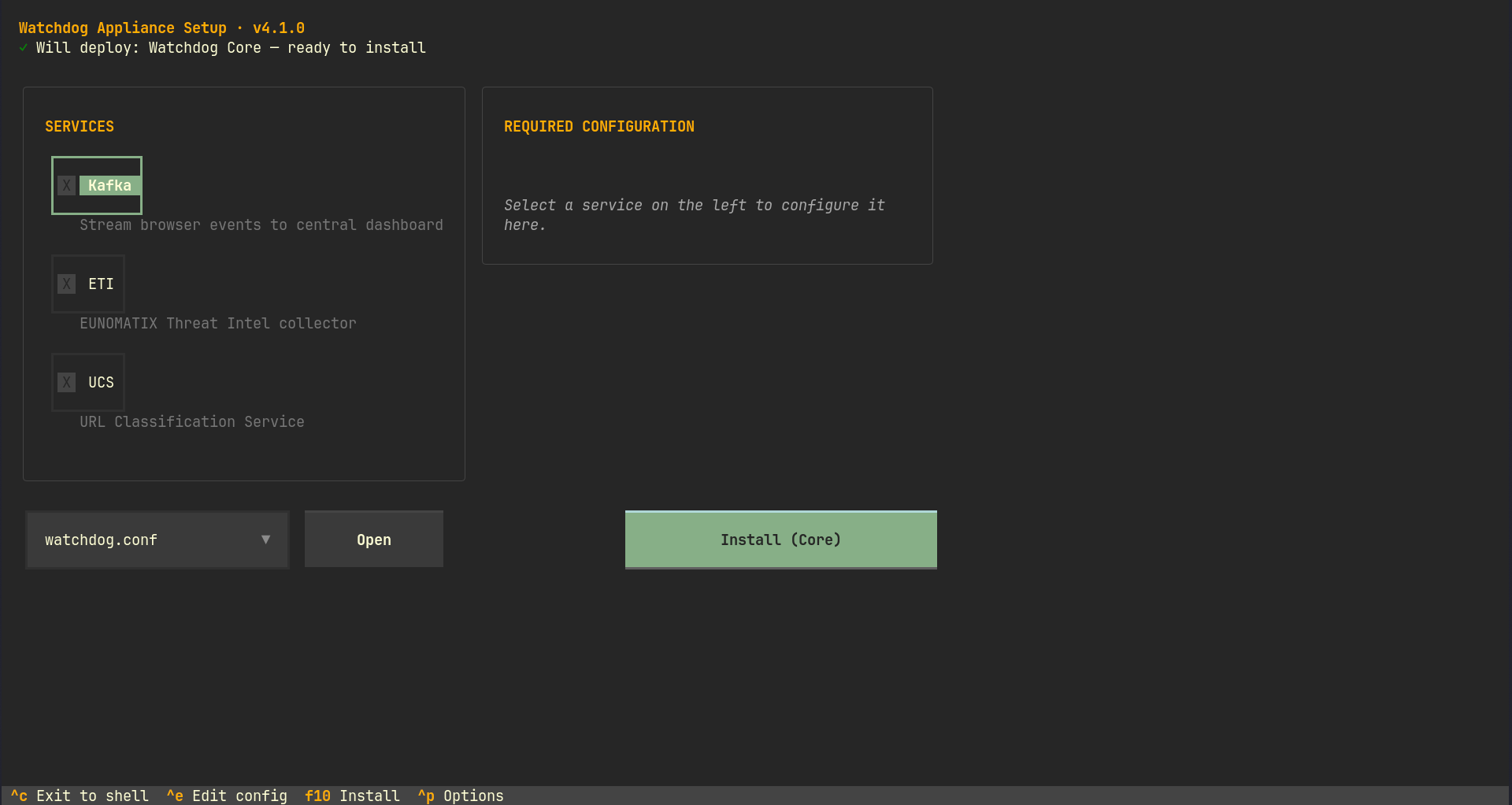
What you'll see:
The TUI is a two-column form:
- Left column — Services: checkboxes for
Kafka,ETI, andUCS. Watchdog Core is always installed. - Right column — Required configuration: appears as tabs (
Kafka/Elasticsearch) once you enable a service. Only the tab for the active service is shown so the form never scrolls. - Summary bar at the top reflects what's about to be deployed and any unmet validation (
✓ Will deploy: Watchdog Core + Kafka — ready to installor⚠ Kafka external IP required). - Edit config dropdown + Open at the bottom lets you open any of the four
.conffiles (watchdog.conf,mapping.conf,browsermon-watchdog.conf,ssl_config.ini) in vim before installing. - Install button on the right shows the components that will be deployed (e.g.
Install (Core + Kafka + ETI)).
Steps:
- Toggle the services you want (Kafka / ETI / UCS).
- Switch to the appropriate config tab and fill in the required fields:
- Kafka external IP — IPv4 or IPv6 (auto-detected from the VM's primary interface; edit if needed). IPv6 addresses are auto-bracketed for Kafka's
advertised.listeners. - Elasticsearch admin password / username / user password — pre-filled with installer defaults; change them for production.
- (Optional) Open
watchdog.conffrom the dropdown to set your license key (and any other Watchdog Core settings) in vim. Save and exit (:wq) to return to the TUI. The same dropdown also opensmapping.conf,browsermon-watchdog.conf, andssl_config.ini. - (Optional — only if your BrowserMon controllers will use strict TLS verification) Open
ssl_config.inifrom the dropdown and add the hostname or IP your controllers will connect to undersan.dnsorsan.ip. By default BrowserMon controllers connect withverify=false, in which case this step is not required. See Certificate Management for the full background. - Click Install (or press F10). The screen swaps to a live log panel showing the installer's
docker compose up -doutput. - On success, the TUI reports
Watchdog is running at https://<vm-ip>:8900and exits to a normal shell. Subsequent logins go straight to the shell (the TUI disables itself once installation succeeds). - On failure, the panel offers Retry (re-run with the same inputs) or Drop to shell. State is preserved and the TUI re-launches on next login.
Keyboard shortcuts:
| Key | Action |
|---|---|
Ctrl+C |
Exit to shell — state is preserved, TUI re-launches on next login |
Ctrl+E |
Open the selected config file in vim |
F10 |
Install |
Ctrl+P |
Options menu (palette) |
Esc |
Close the keys/options modal |
Escape hatches:
- Skip the TUI for a session (e.g., for maintenance):
SKIP_WATCHDOG_TUI=1 ssh watchdog@<vm-ip>— you'll land directly in the shell. The TUI returns on the next normal login. - Resume after exit: if you press
Ctrl+Cto drop to shell, your form values are saved to/opt/watchdog-tui/state.json. The TUI re-launches on the next login with everything restored.
The release tree is at /opt/watchdog-release/ if you need to inspect it, but you do not need to cd there or run anything from it manually.
Step 7: Verify Installation
Check that the expected containers are running:
- If Kafka was enabled:
kafka,kafka-connect,mongo,grafana, andbrowsermon-inspectcontainers should be running. Kafka runs in KRaft mode — there is no separate ZooKeeper container. - If ETI was enabled:
es,es-init,eti-init, andthreat-collectorcontainers should be running. - If UCS was enabled:
es,es-init,ucs-init, anducs-clientcontainers should be running.
The Watchdog HTTPS server is reachable at https://<vm-ip>:8900.
Re-running the Installer
The OVA's upgrade model is whole-OVA replacement — there is no in-place update path. To re-run the installer (e.g., to add a service that wasn't enabled originally):
cd /opt/watchdog-release && sudo ./watchdog-installer.sh clean
sudo rm -f /opt/watchdog-tui/.installed
exit
Important: When the
cleancommand asksDo you want to remove Docker images as well? (y/n) (default: n), press Enter (or answern). The OVA ships with the Watchdog images pre-loaded for air-gapped use — removing them will leave the VM unable to reinstall without re-importing the images.If you want to start from completely fresh configuration files, also remove the runtime data directory after the
cleanstep:
Log back in. The TUI will re-launch automatically and you can repeat Step 7 with the new selections.
To manually relaunch the installer at any time, run watchdog-tui.
Port Reference
The following ports are used by Watchdog and its optional services:
| Port | Service | When Required |
|---|---|---|
| 8900 | Watchdog (HTTPS) | Always |
| 22 | SSH | Always |
| 8092 | Kafka (SASL_SSL) | If Kafka mode enabled |
| 9200 | Elasticsearch (HTTPS) | If ETI or UCS enabled |
| 1514 | Grafana UI | If Kafka mode enabled |
Note: The VM firewall (UFW) only manages port 22 (SSH). All Docker service ports (8900, 8092, 9200, etc.) bypass UFW entirely and are accessible as soon as the containers are running.
Expanding Disk Storage
Disk usage will grow over time depending on the number of monitored endpoints and data retention period. The VM uses LVM partitioning, so volumes can be expanded without reinstalling.
To check available space and extend a partition:
sudo vgs                                         # find VG name and free space
sudo lvextend -L +5G /dev/<vg-name>/<lv-name>
sudo resize2fs /dev/<vg-name>/<lv-name>
Note: If the underlying virtual disk needs to be enlarged first, expand it through your hypervisor's settings, then use
pvresizeto make the new space available to LVM before extending logical volumes.
Air-Gapped Deployment Notes
- All Docker images are pre-loaded on the VM — no registry or internet access is needed during installation.
- If using UCS in an air-gapped environment, set
ucs_updates=falseinwatchdog.conffrom the TUI's edit dropdown before clicking Install. The local UCS snapshot index will be restored automatically upon installation. - ETI will function with locally available data. External access to
eti.eunomatix.comis only required if you intend to fetch live threat intelligence updates.
Security Notes
- SSH accepts both password and public-key authentication by default. Password auth is retained so operators can bootstrap the VM from hypervisor consoles that do not support pasting SSH public keys. The initial
watchdogpassword is expired on first login, forcing an immediate change, so there is no long-lived default credential. - The first-boot TUI auto-elevates to root via a scoped
NOPASSWD:SETENVsudoers rule on/usr/local/bin/watchdog-tui. Thewatchdogoperator account is therefore privileged by design — treat it as the system administrator. - The kafka-connect REST API (port
8083) is bound tolocalhostonly and is not externally accessible. - Host proxy environment variables are isolated from containers via
no-proxy.env, preventing interference with container-to-container networking.
Kafka Install
Browsermon Inspect and Kafka is packeged with the Watchdog to use as a replacement for Splunk. Kafka processes data from all the endpoints and sends it to a central storage. Using Browsermon inspect you can query data and view it in grafana dashboard from all the endpoints.
Configuration
You should set the Kafka_External_IP to your machine IP. Make sure that browsermon endpoints can connect to this IP.
Default Port
The default port for kafka is 8092
The default port for Grafna is 1514
Grafana Default Credentials
Sign in to the Grafana dashboard at http://<server-ip>:1514 with:
- Username:
admin - Password:
admin
Note: The Grafana dashboard is accessible over the network. Change the default password on first login to prevent unauthorized access.
ETI Install
ETI is packaged along with the Watchdog and runs as a separate docker. It operates independently while integrating with the Watchdog to enhance threat intelligence gathering.
Authentication Requirments
In order for endpoints to use EUNOMATIX ETI service Username, Password Host and Port needs to be written in browsermon.conf file under elastic section.
Example:
[elastic]
host=localhost
port=9200
username=Browsermon
password=BrowsermonElasticUser
eti_index=threat_index
ucs_index=eunomatix_ucs
Default Port
By default ETI service utilizes the centralized elastic database running on port 9200.
Threat Intelligence Fetch Frequency
ETI service fetches threat intel after 24 hours at midnight.
Enabling/Disabling ETI
ETI can be enabled/disabled by setting eti_mode inside browsermon.conf to true or false.
Required Domain Access
For the functioning of the ETI, the following domains must be accessible from the network where your watchdog is deployed.
- ETI API :
eti.eunomatix.com
Important: If watchdog is behind a proxy server, relevant proxy settings must be enabled in watchdog.conf file before installation.
Example:
-
If proxy server has aunthentication, user should enter url according to it e.g
http://username:password@proxy.example.com:8080. -
Both http and https proxies should be specified in watchdog.conf even if you only have http proxy.
-
If proxy is running on your host machine you should use
host.docker.internalorhost.containers.internaldepends on your docker setup as host of proxy instead of localhost
Threat Classification Categories
| Category | Description |
|---|---|
| phish | URL is classified as a phish |
| malware_download | URL is classified as a malware |
| unknown | URL is not listed in ETI |
| unset | ETI mode is turned off |
| failed | Classification failed due to some error |
UCS Install
UCS is packaged along with the Watchdog and runs as a separate docker. It operates independently while integrating with the Watchdog to provide insightful URL classifications.
Authentication Requirments
In order for endpoints to use EUNOMATIX UCS service Username, Password Host and Port needs to be written in browsermon.conf file under elastic section.
Example:
[elastic]
host=localhost
port=9200
username=Browsermon
password=BrowsermonElasticUser
eti_index=threat_index
ucs_index=eunomatix_ucs
Default Port
By default UCS service utilizes the centralized elastic database running on port 9200.
UCS Updates
To fetch daily URL classification updates from EUNOMATIX Cloud API, ucs_updates option must be set true before installation in watchdog.conf. Upon Installation if UCS mode is enabled, classification updates will be fetched daily at midnight by using UCS API.
For air-gapped networks that are isolated from external networks, ucs_updates must be set to false before installation in watchdog.conf. Upon installation if UCS mode is enabled, local snapshot index will get restord.
Enabling/Disabling UCS
UCS can be enabled/disabled by setting ucs_mode inside browsermon.conf to true or false.
Cloud Access
To get UCS daily updates, following cloud URL (https://ucs.eunomatix.com) should be a accessible to the centralized watchdog instance.
- UCS API :
ucs.eunomatix.com
Important: If watchdog is behind a proxy server, relevant proxy settings must be enabled in watchdog.conf file before installation.
- If proxy server has aunthentication, user should enter url according to it e.g
http://username:password@proxy.example.com:8080. - Both http and https proxies should be specified in watchdog.conf even if you only have http proxy.
- If proxy is running on your host machine you should use
host.docker.internalorhost.containers.internaldepends on your docker setup as host of proxy instead of localhost