User Guide
User Guide for InspectRAG
About this Guide
This guide walks you through accessing InspectRAG, asking questions, uploading documents, and understanding why your results may differ from a colleague's. It includes practical query examples and real screenshots of the interface.
InspectRAG is available as a model inside LLMInspect — there is no separate application or login to install.
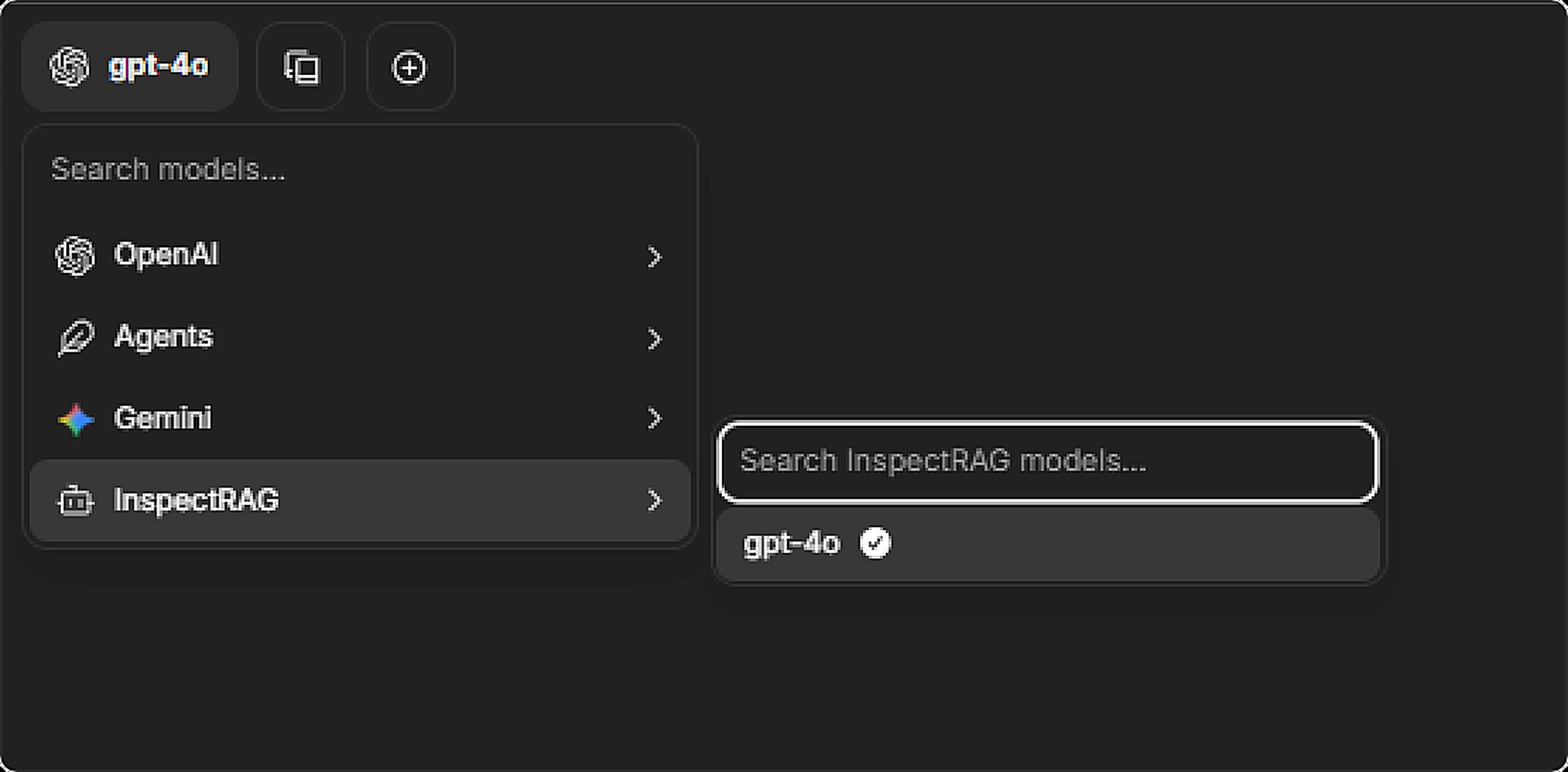
1. Accessing InspectRAG
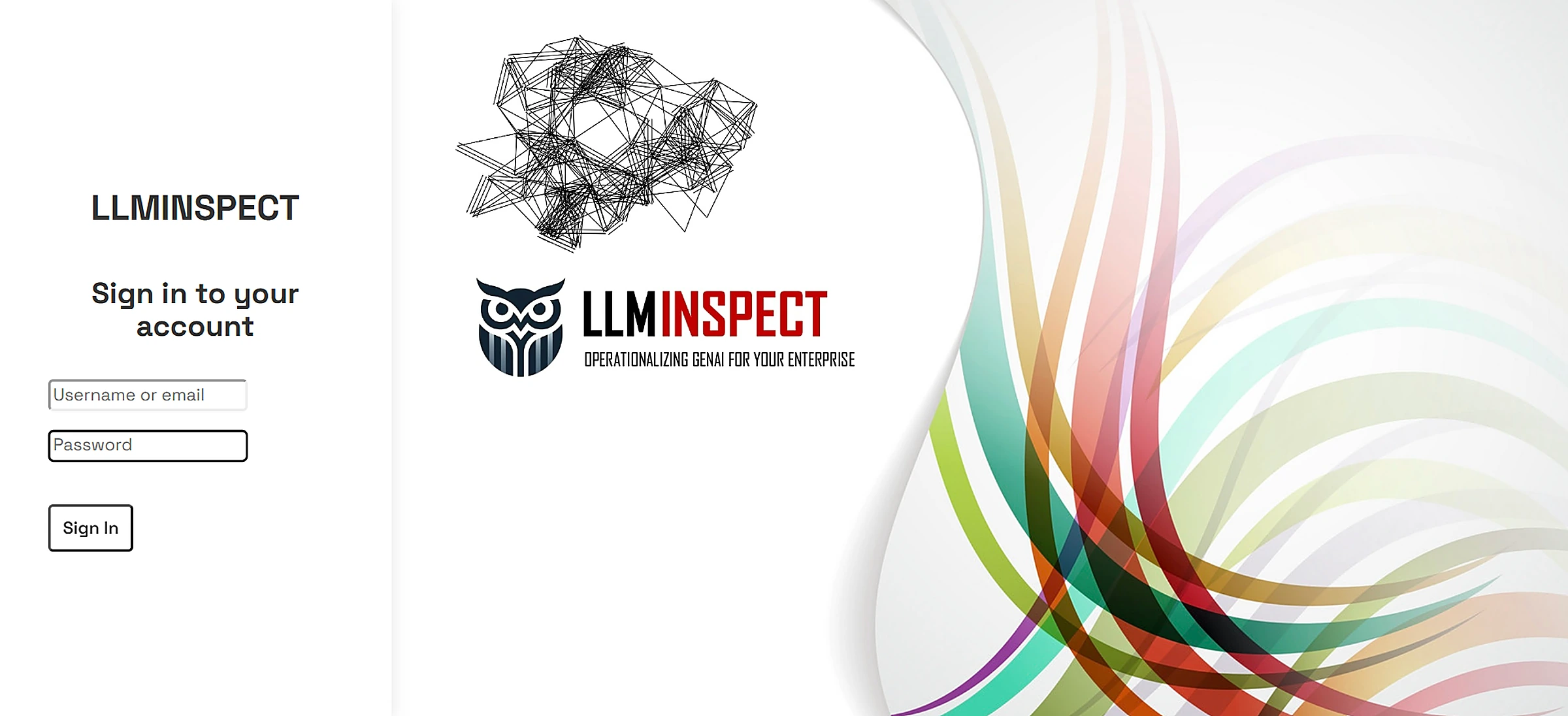
Step 1: Log in to LLMInspect
Navigate to your organization's LLMInspect login page and sign in with your organizational credentials. You are then redirected to the LLMInspect Chat.
Step 2: Select InspectRAG as Your Model
At the top-left of the chat interface, click the model selector dropdown and choose InspectRAG.
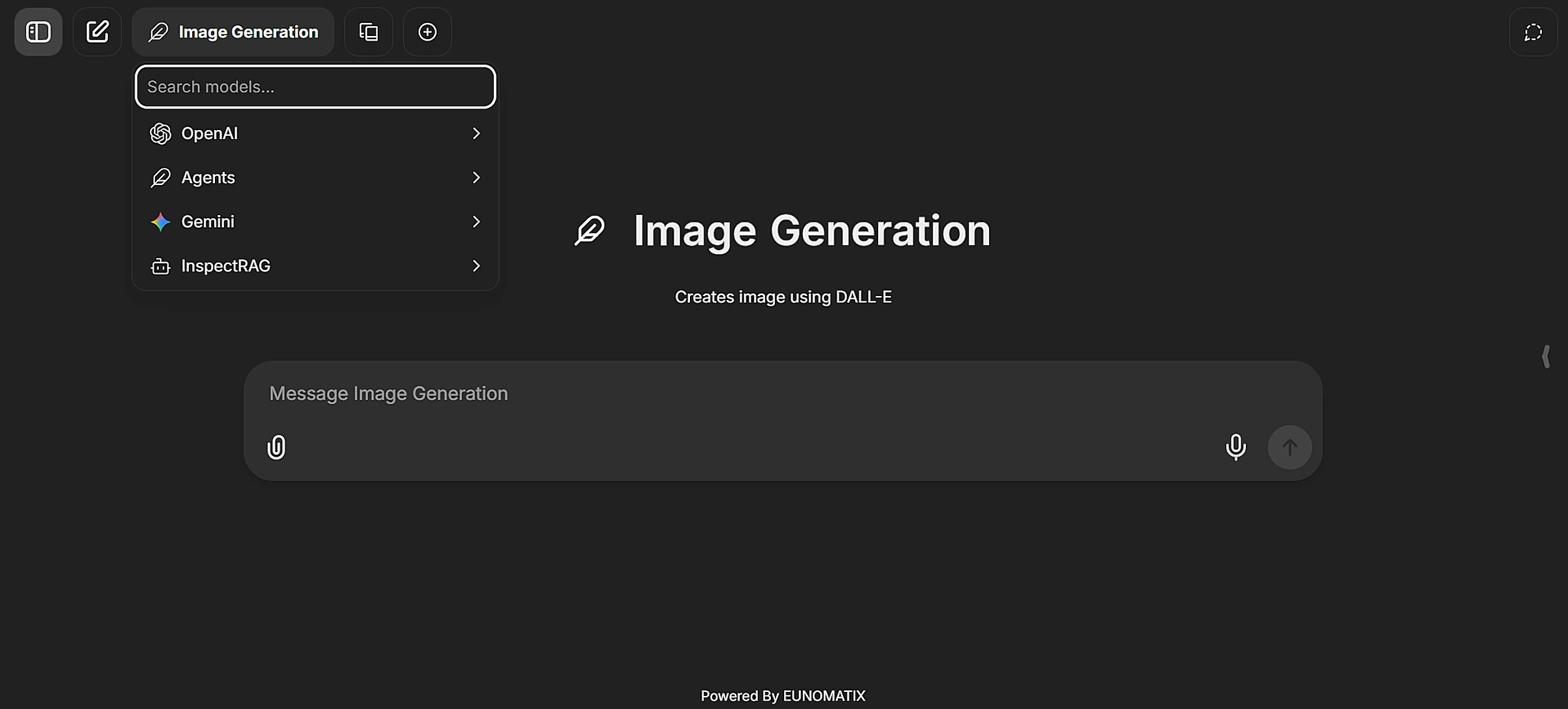
Step 3: Start Querying
Type your question in the message box at the bottom of the central pane and press Enter. InspectRAG searches your connected document sources, filters them by your permissions, and generates a response.
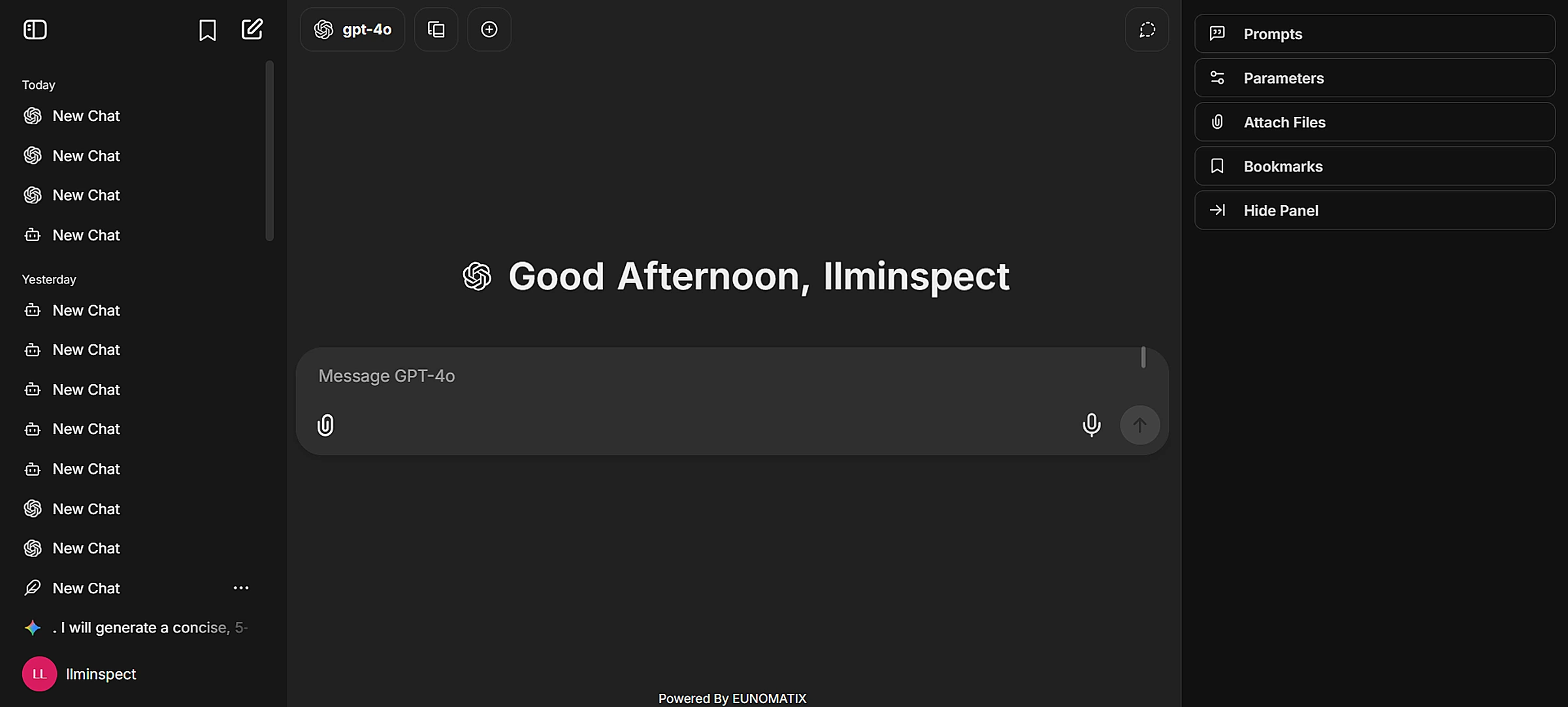
Tip
InspectRAG shares the same LLMInspect interface. Your existing login gives you access to all bundled models including InspectRAG — no separate password needed.
2. What You Can Query in InspectRAG
Your access to documents depends on your roles, group memberships, and permissions configured in Active Directory and mapped within InspectRAG. You can ask questions in natural language.
By Document Title
By Topic or Question
What is our refund policy?
Summarise the key risks in the latest risk assessment.
What were the action items from last week's board meeting?
What is the operational report for Nexolla in Q2?
By Creator or Date
By Role or Department
What reports are available to the Finance team?
List all compliance documents accessible to my department.
Tip
You never need to choose a "mode". InspectRAG automatically adapts to your question — quick lookups return focused answers, while broad requests like "summarise all comments on this page" are handled with multi-level summarisation to produce a complete response.
3. Uploading Files via Chat
You can upload a document directly in chat and query it immediately in the same conversation.
- Click the upload (paperclip) button in the chat input area.
- Select the file from your computer.
- Wait a moment while InspectRAG indexes the file.
- Type your question about the file and press Enter.
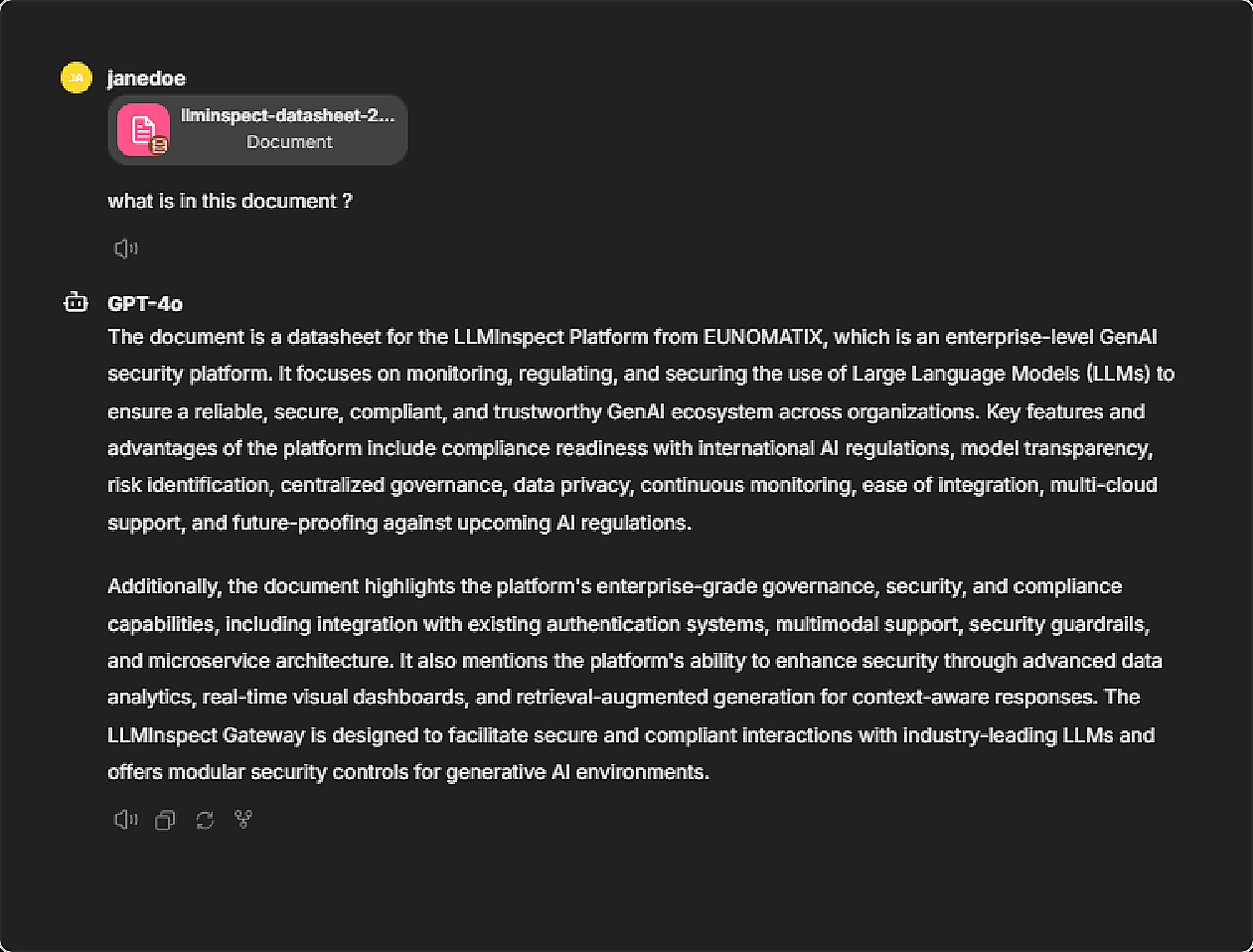
Supported formats include PDF, DOCX, XLSX, PPTX, TXT, CSV, Markdown, XML, RST, ePub, and common source code files.
Note
Files uploaded directly in chat are available for the current session. They are not permanently added to your organization's document library unless your administrator has configured permanent ingestion.
4. Querying Content from Connected Platforms
Beyond files you upload, InspectRAG can answer from content already stored in your organization's platforms — SharePoint, Confluence, Jira, Amazon S3, and email. This content is indexed automatically and stays up to date, so you can simply ask about it.
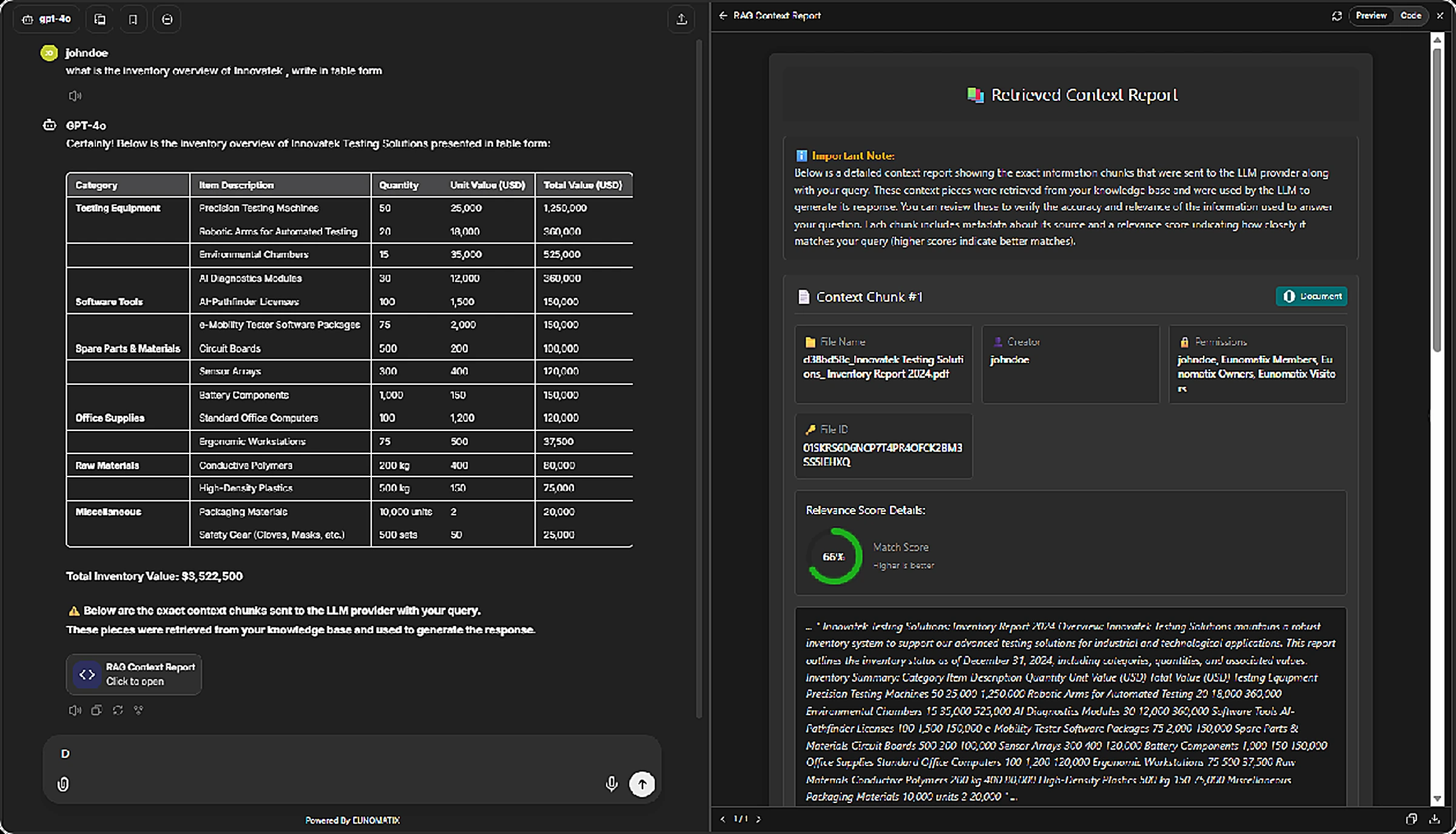
Example: A document stored in SharePoint
Asking for an inventory overview returns a structured answer built from the SharePoint-sourced document, along with a context report showing exactly what was used.
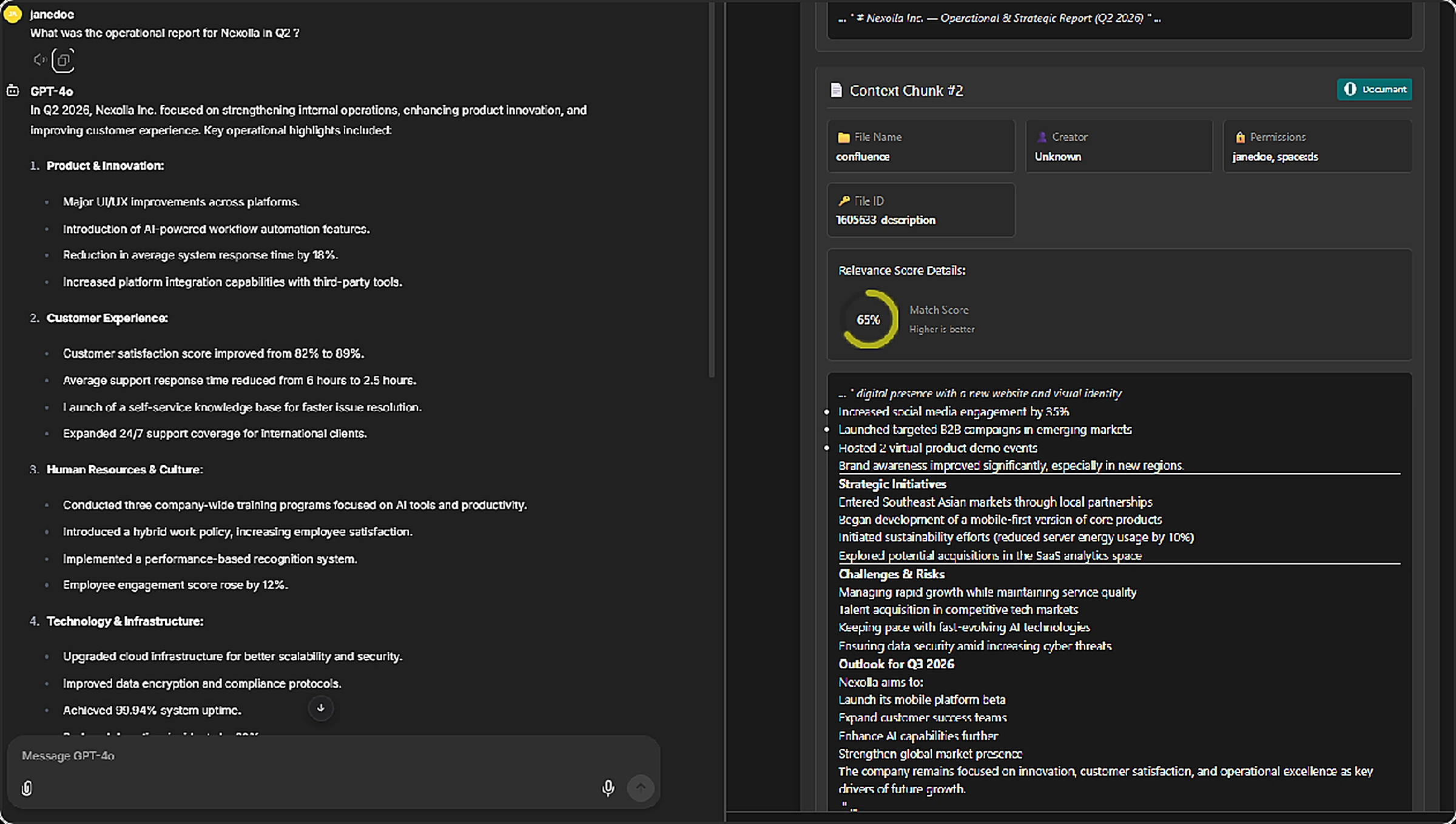
Example: A page stored in Confluence
The same applies to Confluence pages, Jira issues, and other connected sources.
Note
You do not need to know which platform a document lives in. Ask your question naturally and InspectRAG searches everything you have access to.
5. Permission Matching in Action
When you submit a query, InspectRAG cross-references your roles, groups, or username against the permissions on each file in its source platform. You only ever receive content you are authorized to see.
This means two people can ask the identical question and get different answers — and that is by design.
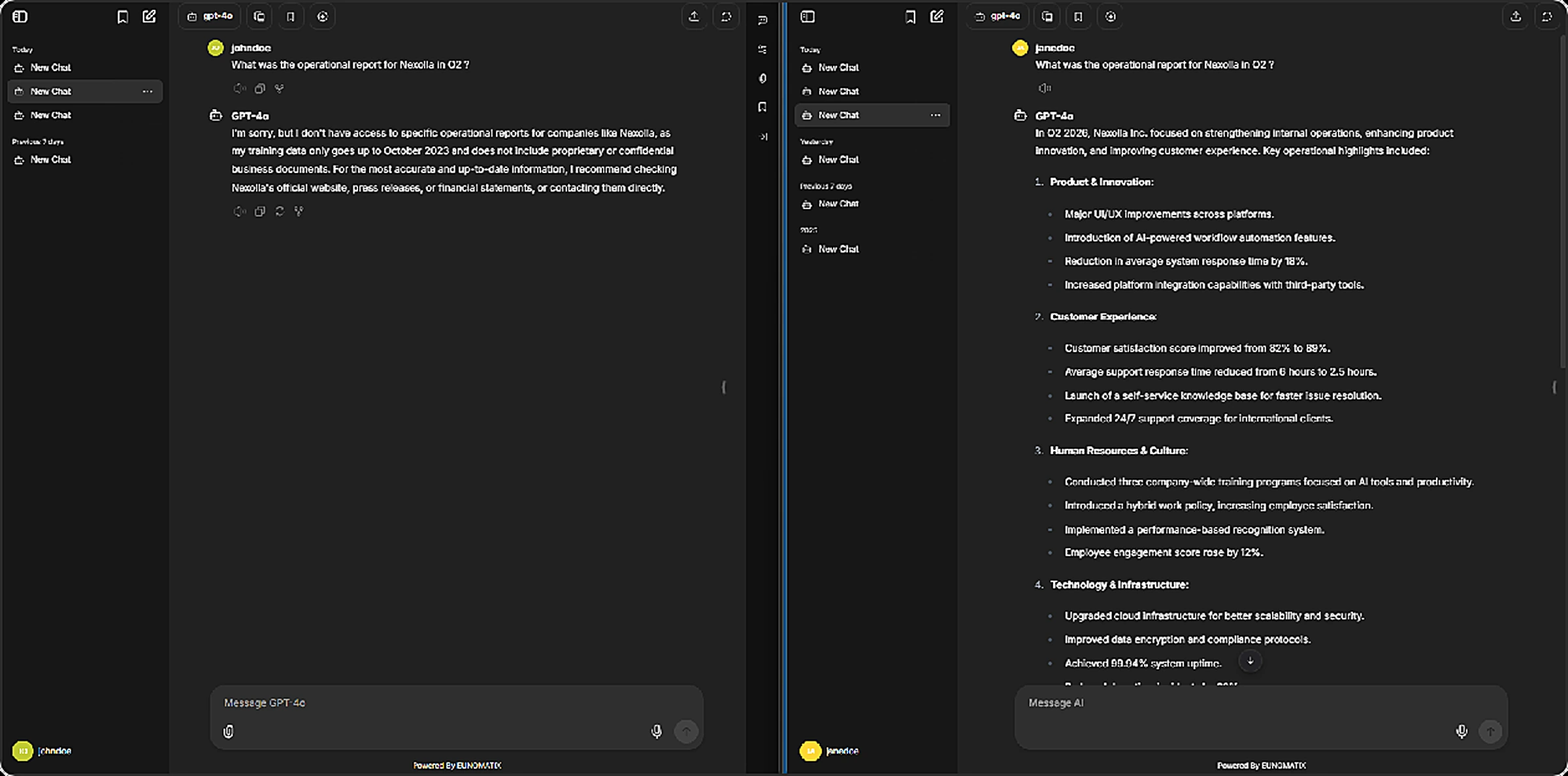
In the example above, both users asked "What was the operational report for Nexolla in Q2?":
- janedoe has the required permissions and receives a full, detailed response built from the indexed Confluence page.
- johndoe does not, so InspectRAG supplies no context and the model answers from general knowledge only.
Successful Match
| Your query | "Retrieve the Q2 Sales Report 2024." |
| File permissions | Finance Team, Managers Group |
| Your roles | Finance Analyst, Group: Finance Team |
| Result | Access granted — full document content is returned. |
Failed Match
| Your query | "Show me the legal compliance document." |
| File permissions | Legal Team, Compliance Officers |
| Your roles | Marketing Team Member (no match) |
| Result | The document is silently excluded from your results. |
When a document is filtered out, you will not see an error. For general queries, the AI answers from open information. For queries tied to a restricted file, you receive a neutral, context-less reply such as:
"Without specific details, it's challenging to provide an exact answer. Reports vary widely depending on the scope and purpose."
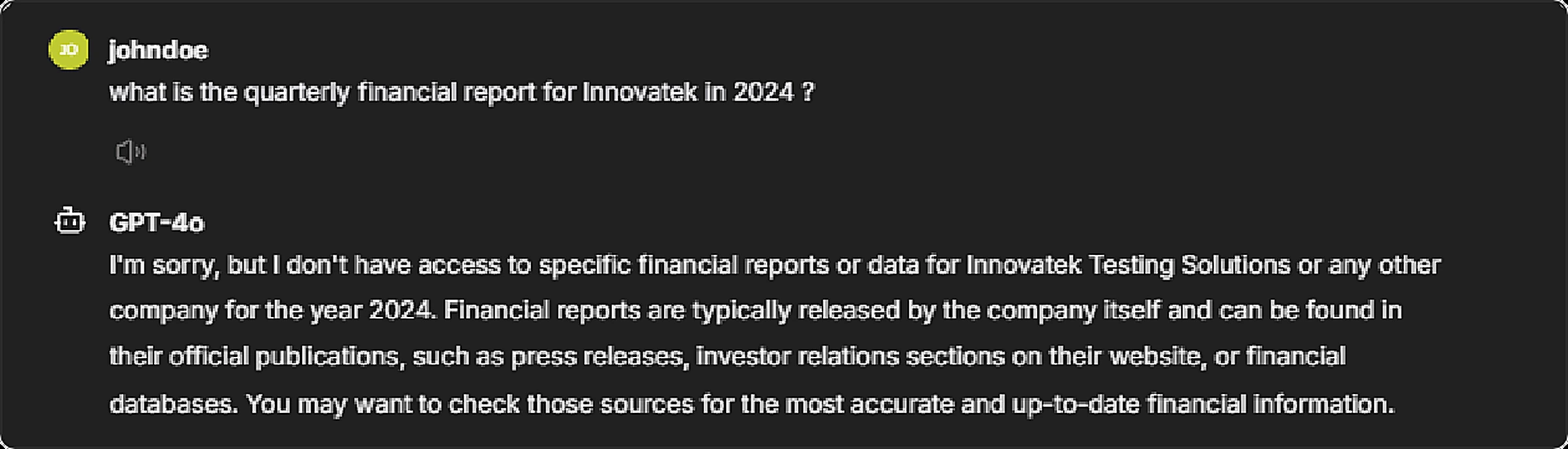
Why you don't get an 'access denied' message
InspectRAG never tells you that a document exists but is restricted. Revealing that would leak information about content you cannot see. The neutral response is a deliberate security feature, not a bug.
If you believe you should have access to something, contact your administrator to have your roles updated.
6. Understanding Your Results: Context Reports
Whenever InspectRAG uses documents to answer you, it can show you exactly which content was used — including the file name, its creator, its permissions, and how closely it matched your query.
Click the RAG Context Report button beneath a response to open it.
For a full walkthrough of how to read one, see the Context Report Guide.
7. Tips for Effective Queries
- Be specific. "Find all sales forecasts for Q4" works better than "sales stuff".
- Name the document if you know it. Titles are matched directly.
- Filter by creator or date. "Reports submitted by Jane Doe in September."
- Ask follow-ups. Conversations keep their context, so you can refine without repeating yourself.
- Check the context report if an answer looks incomplete — it shows what InspectRAG actually retrieved.
- Don't worry about phrasing. Natural questions work; you don't need keywords or special syntax.
8. Summary
InspectRAG lets you ask questions across all your organization's connected content while guaranteeing that you only ever see what you are authorized to see.
This guide covered how to:
- Log in to LLMInspect and select InspectRAG as your model.
- Ask questions and use the different query types.
- Upload files in chat and query them instantly.
- Query content from SharePoint, Confluence, Jira, and other connected platforms.
- Understand permission-based responses and why results differ between users.
- Open a context report to see exactly what informed an answer.
For issues or access requests, contact your administrator or info@eunomatix.com.