Context Report Guide
Context Report Guide
About this Guide
Every time InspectRAG answers using your organization's documents, it can show you exactly what it used. That view is called a context report, and this guide explains how to open one and how to read it.
Context reports exist for transparency and verification. Rather than asking you to trust the answer, InspectRAG shows you the source passages, where they came from, who created them, who is allowed to see them, and how closely each one matched your question.
1. What Is a Context Report?
When you ask a question, InspectRAG searches your indexed content, filters it by your permissions, and sends the most relevant passages ("chunks") to the AI model alongside your query. The model writes its answer from those chunks.
A context report is a detailed view of that hidden step. It shows:
- The exact passages that were sent to the model
- Which file each passage came from
- The creator and permissions of that file
- A relevance match score for each passage
If an answer looks incomplete or surprising, the context report tells you why.
2. Opening a Context Report
Beneath any InspectRAG response that used your documents, click the RAG Context Report button. The report opens in a side panel next to your conversation.
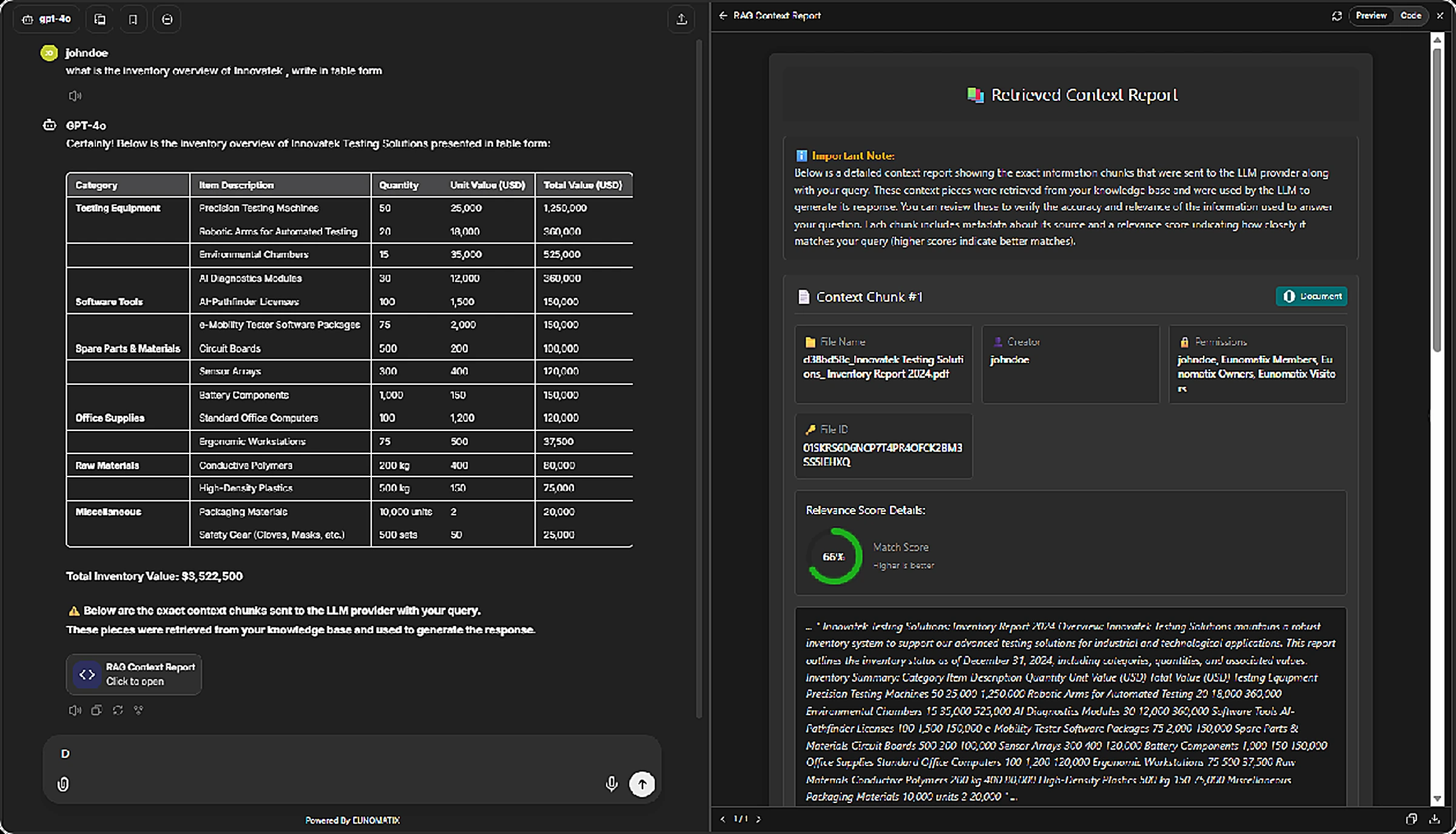
Note
If a response has no context report, InspectRAG did not use any of your documents to answer — the model replied from general knowledge only. This is normal for general questions, and it is also what you see when every matching document was filtered out by your permissions.
3. Anatomy of a Context Report
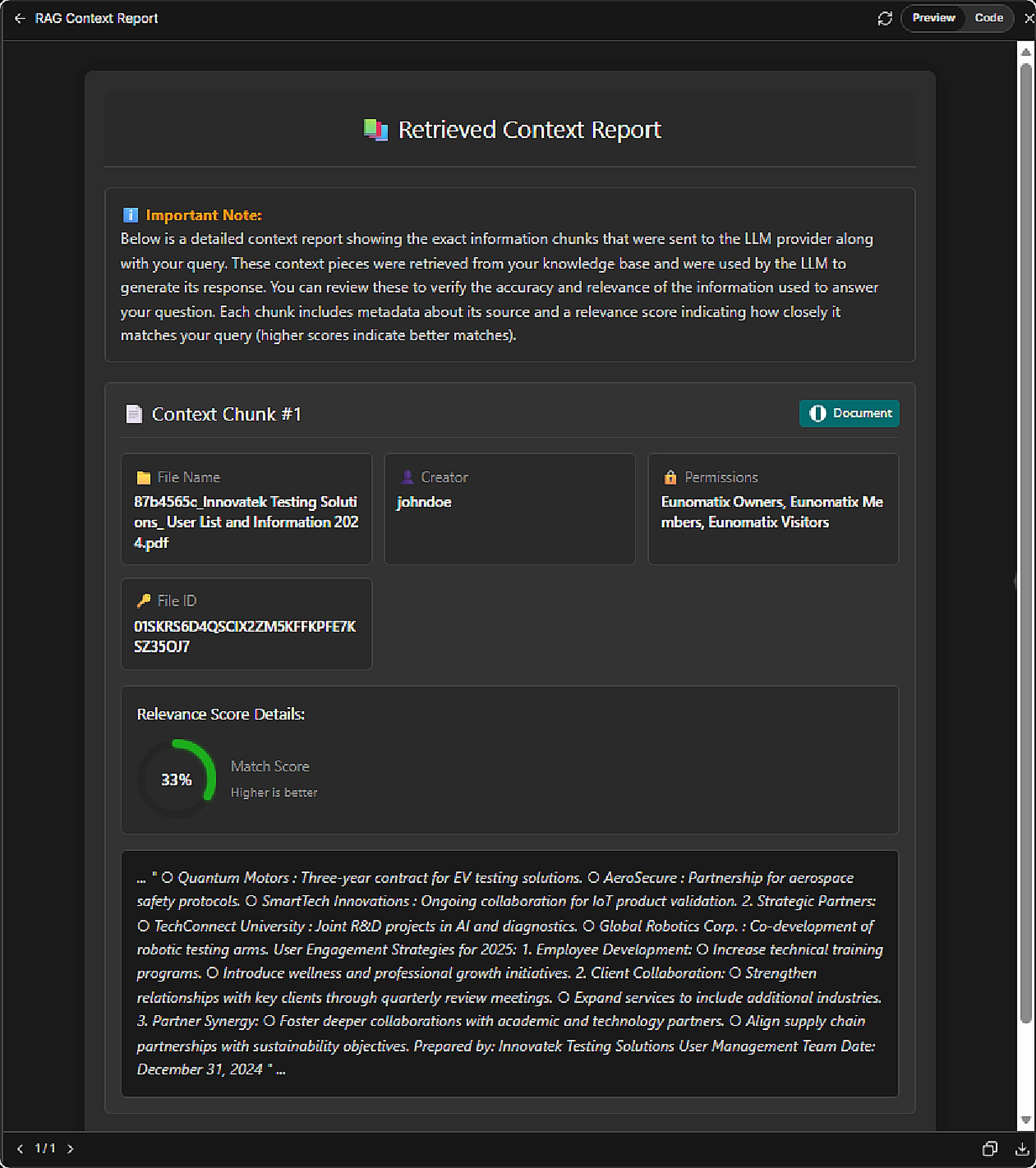
A report is made up of the following parts.
Important Note
A banner at the top explaining that the report shows the exact information chunks sent to the LLM provider along with your query, and that you can review them to verify the accuracy and relevance of the answer.
Context Chunk
Each retrieved passage appears as its own numbered card — Context Chunk #1, #2, and so on. A badge on the right (for example Document) indicates the type of source. If several passages were used, you will see several chunks.
Metadata Grid
Each chunk carries the following metadata, inherited from its source platform:
| Field | What it tells you |
|---|---|
| File Name | The source document the passage was taken from. |
| Creator | The user who created or uploaded the file. |
| Permissions | The roles or groups allowed to access this file. You are seeing it because you match one of them. |
| File ID | The unique internal identifier for the document, useful when reporting an issue to your administrator. |
Relevance Score Details
A Match Score dial showing how closely the passage matched your query, where higher is better. See the next section for how to interpret it.
Content Preview
The actual text of the passage that was sent to the model. This is the raw source content — you can read it to confirm the answer reflects what the document really says.
4. Reading the Match Score
The match score shows how strongly a passage matched your query. Higher scores indicate a closer match.
A moderate score is not a problem on its own. A passage scoring in the 30-40% range can still be exactly the right source — it often just means the document uses different wording than your question did, or the passage covers your topic among several others.
Use the score as a hint, not a verdict:
- Higher scores — the passage closely mirrors your query's wording and topic.
- Lower scores — the passage is still relevant enough to have passed your organization's threshold, but matched more loosely.
Your administrator configures the minimum score required for a passage to be used at all, so anything you see in a report has already cleared that bar.
Tip
If the score is low and the answer seems off, try rephrasing your question using terminology closer to the source document — for example, use the report's File Name and Content Preview as clues for better wording.
5. Using Context Reports to Troubleshoot
Context reports are the fastest way to understand an unexpected answer.
| What you notice | What it likely means | What to do |
|---|---|---|
| No context report at all | No document you can access matched your query. | Rephrase, or ask your administrator whether you should have access. |
| The right file is missing | It exists, but your roles don't match its permissions — so it was silently filtered out. | Contact your administrator to review your roles. |
| A chunk is from the wrong document | Another file matched your wording more closely. | Add detail to your query, such as the document title or date. |
| The preview contradicts the answer | The model may have misread the passage. | Rephrase, and report it to your administrator with the File ID. |
Permissions are enforced before the report is built
A context report only ever shows documents you are authorized to see. Files you lack permission for never appear — not even as a hidden or redacted entry. This is why a report can look "empty" for a question you know the organization has documentation on.
This is intentional. Revealing that a restricted document exists would itself leak information. See Permission Matching in Action in the User Guide.
6. Exporting a Report
Context reports are rendered as inline panels in your chat, and can also be exported as standalone HTML files for sharing or record-keeping.
Report features include:
- Responsive design that works alongside your conversation
- Context sections with full metadata grids
- Relevance score visualisation
- Structured content display with markdown support
- Source attribution for every context chunk
Note
An exported report contains the source passages themselves. Treat it with the same care as the underlying documents — sharing it with someone who lacks permission to those files would bypass the controls InspectRAG enforces in chat.
7. Summary
Context reports make InspectRAG's retrieval auditable. In a single view you can confirm which documents informed an answer, who owns them, who can see them, and how well they matched your question.
- Open one with the RAG Context Report button under any response.
- Read the metadata grid to see the file, creator, and permissions.
- Read the content preview to verify the answer against the real source.
- Use the match score as a hint about wording, not a measure of correctness.
- An empty report means nothing you can access matched — ask your administrator if you expected otherwise.
For related reading, see the User Guide.