User Management
User Management
After the initial setup a default user is automatically created with username llminspect.
llminspect user is used to access the following interfaces with highest previledges
- InspectChat
- LLMInspect Admin Panel
- InspectBoard, the LLMInspect observability dashboard, which uses the same LLMInspect user accounts
Note: The llminspect user's password should be changed immediately after initial setup for security reasons.
Changing the password for the llminspect user
To set/reset the password for the llminspect user:
-
Log into the Keycloak admin console (see Accessing LLMInspect)
-
Select realm
LLMInspect -
Go to Users in the left sidebar
-
Find and click on user
llminspect -
Go to Credentials tab
-
Click "Reset Password"
-
Set new password and use these credentials to log into InspectChat, the LLMInspect Admin Panel and InspectBoard
Creating Users Manually
- Navigate to Users → Add User
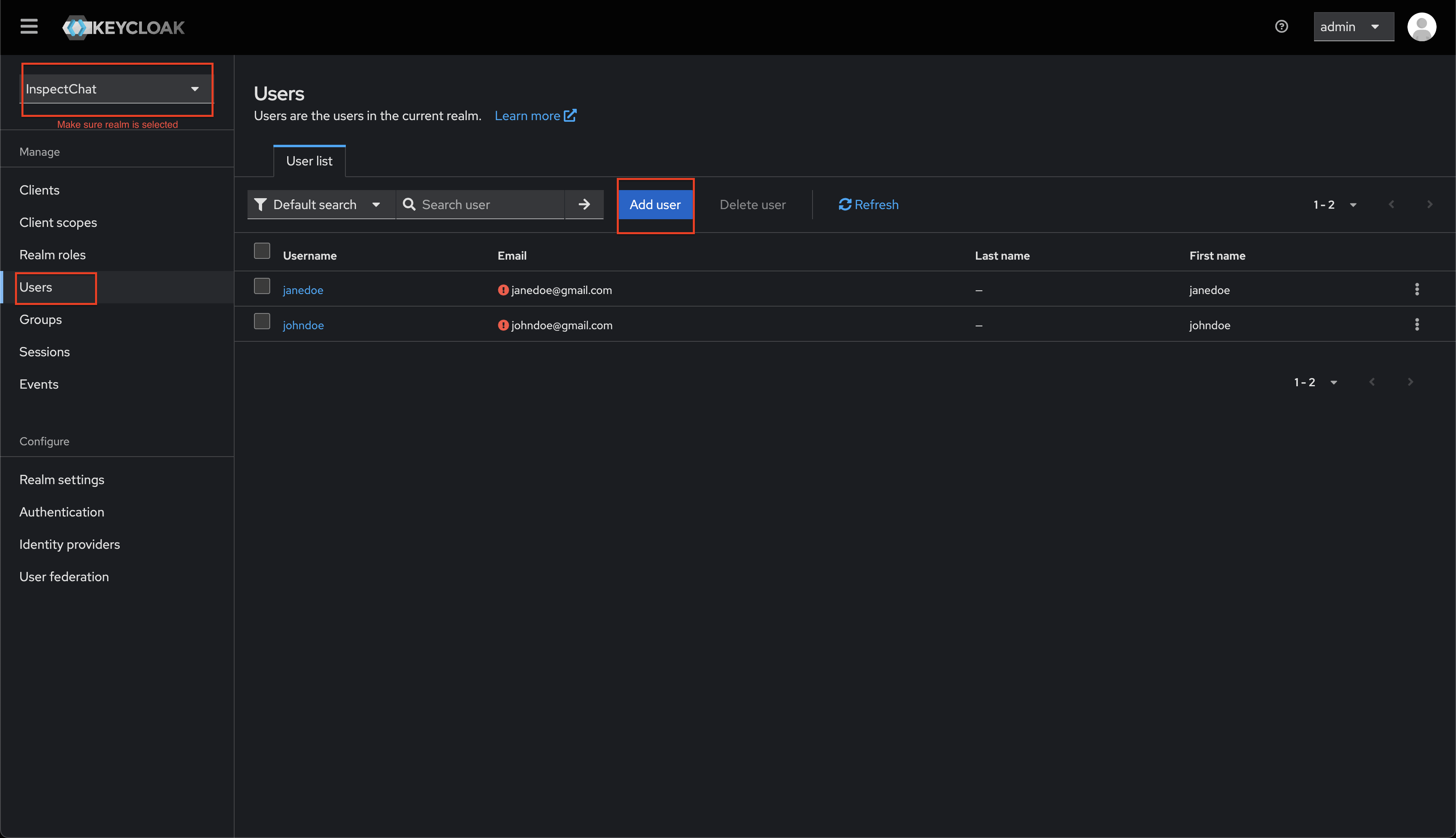
Fill required fields:
2. Set initial password in Credentials tabUser Federation with LDAP
- Go to User Federation → Add Provider → ldap
- Configure LDAP settings:
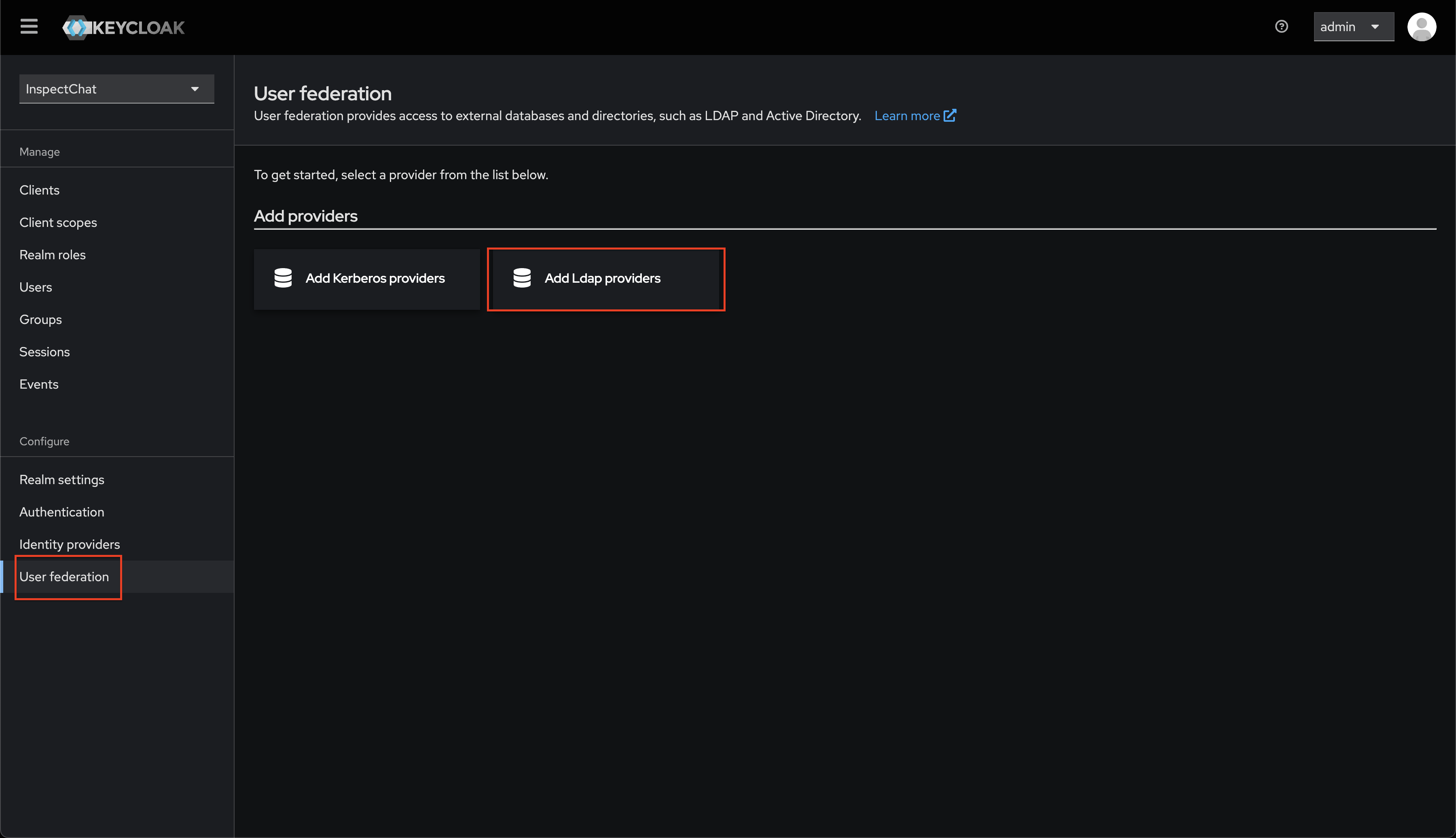
Fill ldap configuration fields:
Connection URL: ldap://your-ldap-server:389
Bind DN: cn=admin,dc=example,dc=com
Bind Credential: your-password
User DN: ou=users,dc=example,dc=com
- Test connection and save
- Synchronize users