Admin Guide: Architecture
The Admin Guide explains how to deploy and operate Logster using the packaged appliance shipped for evaluation and production trials. It is self-contained: follow it end to end and you will have a working Logster deployment.
A Logster deployment is split across two nodes:
| Node | What it runs | How it is shipped |
|---|---|---|
| App Node | The full Logster application stack (ingestion, detection, console, APIs, monitoring) | An .ova virtual-machine image you import into your hypervisor |
| GPU Node | The local LLM that Logster uses to reach a verdict on each window of activity | A Docker image tarball you load and run on a GPU-equipped VM |
The two nodes are deployed differently for a reason: the App Node is fully self-contained and ships as a ready-to-import VM, while the GPU Node needs direct access to physical GPUs. GPU passthrough into a virtual machine is hypervisor-specific and cannot be baked into a portable image, so the GPU Node is shipped as a Docker image you run on a VM you provision with GPU access.
This page is the architectural overview of that deployment. The step-by-step installs live in App Node Install and GPU Node Install, and connecting endpoints is covered in Connect Windows Endpoints.
Architecture Diagram & Topology
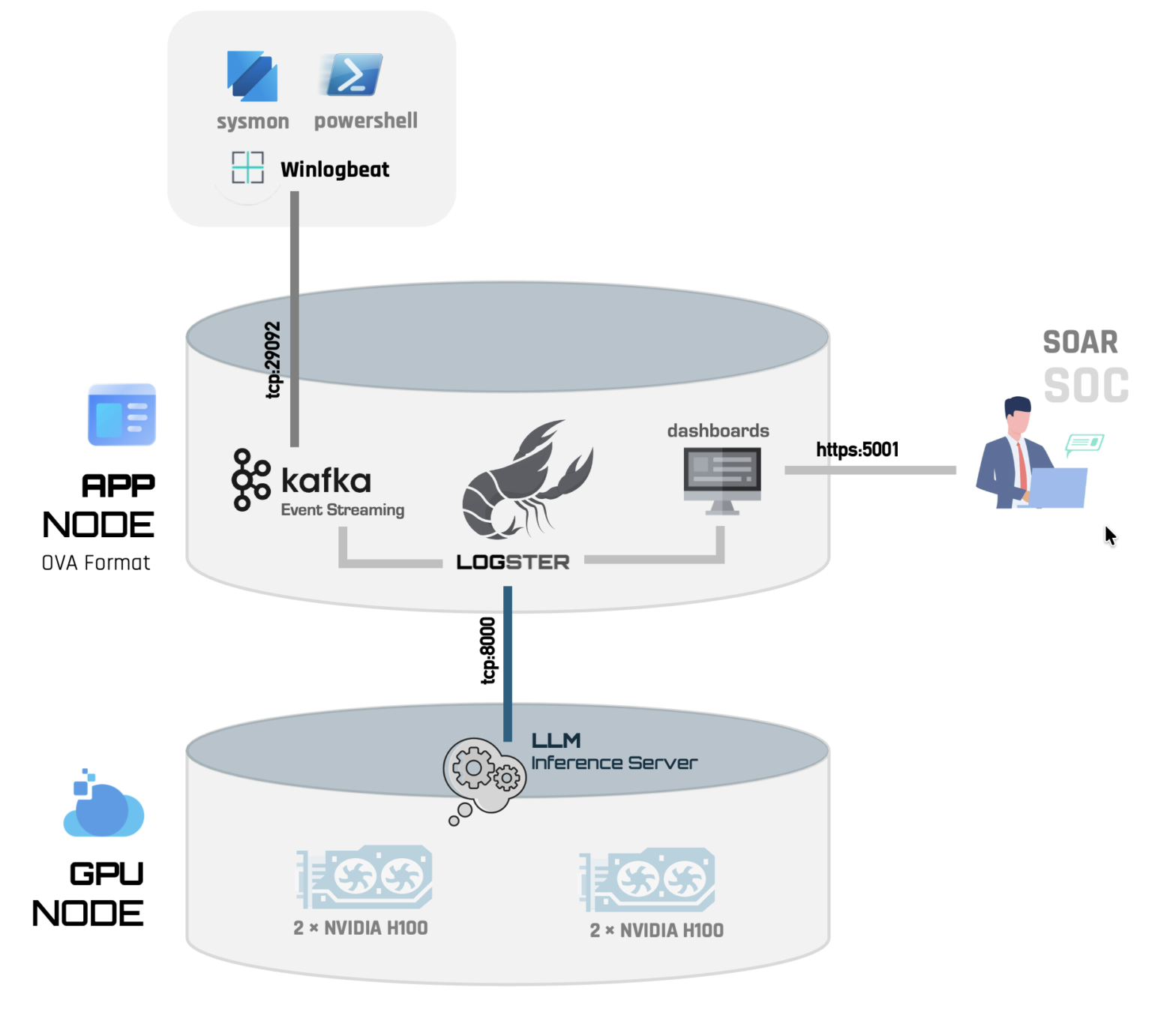
- Endpoints → App Node: monitored machines ship raw logs to the App
Node's Kafka listener on port
29092. - App Node → GPU Node: the App Node calls the GPU Node's LLM endpoint
(an OpenAI-compatible Chat Completions URL) to evaluate activity. You give
the App Node this URL via the
LOCAL_LLM_ENDPOINTsetting.
Deployment Order
Set the two nodes up in this order:
- GPU Node — provision a GPU-capable VM, load the model image, and start the LLM server. Note its endpoint URL.
- App Node — import the
.ova, point it at the GPU Node's endpoint, install your license, and start the stack. - Connect endpoints — point your Windows endpoints at the App Node.
Bring the GPU Node up first so its endpoint URL is ready when you configure the App Node.
Hardware Requirements
App Node
| Resource | Recommended | Minimum |
|---|---|---|
| CPU | 12 vCPU | 8 vCPU |
| RAM | 64 GB | 24 GB |
| Disk | 300 GB NVMe SSD | 300 GB NVMe SSD |
GPU Node
| Resource | Recommended | Minimum |
|---|---|---|
| CPU | 8 vCPU | 8 vCPU |
| RAM | 64 GB | 64 GB |
| GPU | 2 × NVIDIA H100 80 GB | 2 × NVIDIA RTX A6000 |
Network Requirements
The deployment needs the following network flows. If a firewall sits between any two of these segments, open the corresponding port.
| To | Port / Protocol | Purpose |
|---|---|---|
| App Node | 29092/TCP |
Winlogbeat ships logs to the Logster's Kafka listener |
| GPU Node | 8000/TCP |
LLM inference calls (OpenAI-compatible) |
| App Node | 5001/TCP |
Logster Console |